When you open a ZIP folder, it’s easy to get confused by the flurry of mysterious logo file formats: PNG, SVG, EPS, PDF, AI, JPEG, HBD, okay, that last one we just made up.
But it’s difficult to keep all of these logo file formats straight, regardless of whether you’re a small business owner, a freelancer, or even a seasoned marketer. You finally get your new logo, but instead of one clean file you can drop anywhere, you’re given a buffet of options you didn’t ask for and don’t understand.
But here’s the truth: those different logo file formats aren’t random at all. They each play a very important role in maintaining the quality, appearance, and flexibility of your brand visuals. Having the right logo file formats and knowing when to use them is the secret to consistent branding across websites, print materials, social media platforms, merchandise, signage, and everything in between.
In this article, we’ll walk you through the most common logo file formats, explain the difference between vector and raster files, share real-world examples of when to use each format, and solve the most common headaches people face. By the end, you’ll understand your PNGs from your SVGs, your EPS files from your JPEGs, and you’ll feel confident selecting the right logo file format every time.
- Understanding Logo File Types: The Foundation
- Logo File Formats You Need to Know
- Special Use Cases & Applications
- Common Logo File Problems & Solutions
Understanding Logo File Types: The Foundation
Before you can truly understand why there are so many logo file formats, you need to know the difference between raster and vector images. This one distinction explains most of the confusion, and once it clicks, choosing the right file format becomes almost effortless.
Raster Files (Pixel-Based Images)
Raster graphics (also called bitmap images) are made up of tiny squares called pixels. The word “pixel” is a portmanteau of the words “picture” and “element.” Pixels are the smallest dots or units that make up a digital image.
Every pixel contains color information. When viewed at its original size, a raster image looks sharp and clean. But when you enlarge it too much, that’s when you get the dreaded pixelation or blurry, blocky edges.
Raster graphics shine in scenarios with lots of visual detail, like digital photography, gradients, and detailed shading, because pixels can capture subtle changes in color. But when it comes to logos, which often need to scale from tiny social media icons to enormous signage, raster formats are inherently limited. Common raster formats include: PNG, JPEG (or JPG), WebP, TIFF, and GIF.
Pros of Raster Graphics:
- Detailed images.
- Great for photos.
- Wide compatibility with web browsers, apps, and digital platforms.
Cons of Raster Graphics:
- Lose quality when scaled.
- Larger file sizes.
- Not suited for large-format printing.

Vector Files (Mathematical Formulas, Not Pixels)
Vector graphics are created using mathematical formulas (points, paths, curves), not pixels. This means they can scale to any size: from a tiny favicon to a massive billboard. They never get blurry, stretched, or pixelated. Vector formats are also editable, which means a designer can adjust colors, refine shapes, or export the logo into various formats as needed.
They are your master files, even if you personally never open them. Common vector file formats include: SVG, EPS, AI (Adobe Illustrator file format), and PDF (when saved correctly).
The history of the vector file format can be traced back to Ivan Edward Sutherland, an inventor and a pioneer in computer-aided graphics. In the early 1960s, Sutherland developed the graphics software Sketchpad. It was the first of its kind, and it allowed users to manipulate, duplicate, store, and recall drawings for future use.
Around the same time Sutherland was developing Sketchpad, French engineers Pierre Bézier and Paul de Casteljau were independently pioneering the use of mathematical curves (now known as Bézier curves) to design the smooth, aerodynamic bodies of cars. These parallel breakthroughs laid the groundwork for the modern vector graphics revolution.
Pros of Vector Graphics:
- Infinite scalability.
- Crisp lines at any size.
- Editable in design software.
- Required for most printing and editing purposes.
Cons of Vector Graphics:
- Not always compatible with basic programs.
- Requires software like Adobe Illustrator to fully edit.
When to Use Raster & When to Use Vector
Here are the instances when you should use raster files and vector files:
Use raster formats when:
- Uploading your logo to websites.
- Creating social media posts.
- Using images with detailed textures or gradients.
- Working on PowerPoint presentations.
Use vector formats when:
- Sending files to printers.
- Making business cards, flyers, and brochures.
- Printing shirts, banners, or swag.
- Using engraving, vinyl cutting, or embroidery machines.
- Editing the original logo.
Why Understanding This Difference Matters
You might be wondering why these different logo file formats matter in the first place. Knowing the difference between raster and vector and getting familiarized with the wide variety of logo file formats out there can prepare you to deal with many common problems, such as:
- Blurry logos on large formats? Raster file being resized incorrectly.
- White box behind the logo? Raster file without transparency.
- Printer rejecting your files? They need vectors.
- Website loading slowly? Raster files are too large.
Once you know which file types are vector and which are raster, the rest of the format confusion disappears. Now, let’s break down the major logo file formats and explore when and why each one deserves a spot in your digital toolbox.
Logo File Formats You Need to Know
Designers don’t give you a variety of logo file formats to overwhelm you; they do it so you have the right file handy for every scenario. Let’s walk through the most common logo file formats.
PNG (Portable Network Graphics)
PNG files are the workhorses of digital branding. They’re raster images, meaning they’re pixel-based, but they stand out for one extremely important reason: they support transparent backgrounds. This single feature makes them a must-have logo file format for nearly every business.
A PNG’s transparency means your logo can sit cleanly on top of photos, colored backgrounds, website headers, social media graphics, or promotional slides without that ugly white box around it. PNGs also use lossless compression, so they retain sharp edges and bright colors without the fuzzy look JPEGs sometimes get.
For online use (your website header, your Instagram profile picture, your email signature), PNGs are the best choice. They load quickly, look polished, and behave well across digital platforms.
However, PNGs have their limitations. Because they’re raster-based, they’re resolution-dependent. You can’t enlarge them beyond their original size without visible pixelation. And while PNGs are excellent for digital use, they’re not suitable for print unless they’re extremely high resolution. Even then, a PNG will never outperform a vector file when it comes to clarity and print accuracy.
Main Benefits of PNG Files:
- Supports transparency (no white box behind your logo).
- Lossless quality.
- Great for digital files.
- Widely supported in all modern web browsers.
Best Use Cases for PNG:
- Websites
- Social media profile images
- Email signatures
- PowerPoint presentations
- Digital ads
- Online stores
When Not to Use a PNG:
Avoid using the PNG format for:
- Billboards
- Posters
- Large-format signs
- Merchandise printing
- Embroidery
SVG (Scalable Vector Graphic)
The SVG logo file format is arguably the most powerful format for the modern web. As a vector, SVG files scale infinitely, which means your logo will look razor-sharp on any device, from low-resolution desktops to retina-display smartphones, and even promotional coffee mugs.
But that’s only the beginning. Because the SVG file format is built using XML, the same kind of markup language behind HTML, browsers can read and render them quickly. Their file sizes are tiny compared to PNGs, which boosts website performance and helps with SEO. Some web developers even animate SVGs using CSS or JavaScript. For app icons, UI elements, favicons, and responsive designs, SVG is king.
One surprising benefit? You can change colors, outlines, or even shapes directly in the code without opening a design program. This flexibility makes the SVG file format especially valuable for designers and developers working on web-based branding.
Of course, SVGs depend on modern browser support, but today nearly every browser handles SVGs flawlessly. That said, a few older systems still struggle with them, which is why many websites use PNG fallbacks.
SVG also isn’t ideal for print. Some printers accept SVG files, but most still prefer EPS or PDF due to industry standards.
Main Benefits of SVG Files:
- Infinite scalability (no loss of image quality).
- Very small file size (great for SEO and page speed).
- Easily editable with CSS.
- Works with all modern web browsers.
- Ideal for responsive designs (logos that shrink/grow on mobile vs desktop).
Best Use Cases for SVG Logos:
- Website logos
- App icons
- Infographics and UI elements
- Responsive design projects
- Animated logos (CSS or JavaScript-based)
When Not to Use SVG:
- Some print vendors still do not accept SVG files.
- Complex photographic images cannot use SVG.
- Embroidery and screen printing prefer EPS formats.

EPS (Encapsulated PostScript)
EPS stands for Encapsulated PostScript, a vector-based image format developed for high-quality printing and graphic design. If there is one file format every printer trusts, it’s EPS. The EPS file format has been a staple of the design and print industry for decades and remains the universal standard for high-quality, scalable graphics.
Unlike PNG or JPEG, an EPS file is vector-based and entirely resolution-independent. It’s built for professional output: business cards, brochures, trade show displays, banners, vinyl decals, vehicle wraps, laser engraving, embroidery, and signage. If you’re sending your logo to a vendor, sign makers, screen printers, or merchandise suppliers, they’ll almost always ask for the images in the EPS logo file format.
An EPS file is like the Swiss Army knife of vector formats. It works across multiple design programs, not just Adobe Illustrator. Even if you can’t open the file yourself, your printer or designer absolutely can.
The one limitation of EPS? It doesn’t display online. You can’t upload an EPS to your website or social media. It won’t preview in your browser either. It’s purely for design, print, and production workflows.
Whether you’re ordering shirts, creating signage, or preparing print materials, EPS is your most important logo file.
Main Benefits of EPS Files:
- Print-ready.
- Vector-based (infinite scalability).
- Widely accepted by printers, embroiderers, and merch companies.
- Editable in Adobe Illustrator and other vector programs.
Best Use Cases for EPS Logos:
- Business cards
- Brochures
- Letterheads
- Apparel printing
- Promotional products
- Signage and billboards
- Laser engraving
- Screen printing
When Not to Use EPS:
- Websites (EPS does not display in browsers)
- Social media
- Mobile apps
- PowerPoint presentations
JPEG/JPG (Joint Photographic Experts Group)
JPEG is one of the most common digital file formats in the world, but it’s also one of the least ideal for logos. That doesn’t mean JPEGs are useless; they have their place, but relying on them too heavily is a mistake.
JPEGs use lossy compression, which means they throw away data to shrink the file size. That keeps the file lightweight but at the cost of sharpness, clarity, and sometimes color accuracy. You can see this especially around edges, where compression artifacts appear as tiny distortions or fuzziness.
Because JPEGs can’t support transparent backgrounds, they often cause the classic “white box behind the logo” issue, especially when placed over colors or photos.
Where JPEG does shine is in convenience. These files open everywhere, load quickly, and are great for simple web use when the background doesn’t matter. They’re also perfect for sharing quick previews through email or uploading to platforms that don’t support transparent images.
However, JPG files should never be used for printing, embroidery, engraving, or anything requiring scalability.
Main Benefits of JPEG Files:
- Small file size.
- Universal compatibility.
- Fast loading on the web.
Best Use Cases for JPEG Logos:
- Email attachments
- Quick website previews
- PowerPoint presentations
- Social media (in some cases)
Drawbacks of JPEG Logos:
- No transparent backgrounds.
- Colors can look washed out.
- Quality degrades over time.
- Not suitable for print.
When Not to Use JPEG for Your Logo:
- Anything involving print.
- When you need a transparent background.
- When scaling beyond its original size.

PDF (Portable Document Format)
A PDF (Portable Document Format) is one of the most misunderstood, but incredibly powerful, logo file types out there. Most people think of PDFs as simple digital documents, the kind you download, sign, or print. But in the world of branding and design, PDFs play a much bigger role. They’re not just for paperwork; they’re one of the most convenient and reliable formats for storing vector-based images, including your logo.
One of the biggest advantages of using a PDF logo file is that it can contain both vector and raster graphics in a single, compact package. That makes it a remarkably flexible logo file format, especially when you need to share files with people who may not have access to professional design software like Adobe Illustrator.
You can use PDF files to send projects to a client, a printer, a coworker, or even open it on your phone, and it’ll look exactly the same everywhere. The format was literally created by Adobe co-founder John Warnock to preserve appearance consistently across devices, which is exactly what makes it so valuable when dealing with something as important as your logo.
PDFs are also printer-friendly. Nearly every professional printer can handle PDF files, especially when they contain CMYK colors and are saved as encapsulated postscript PDF versions suitable for high-resolution output.
Main Benefits of PDF Files:
- Can contain both vector and raster images.
- Preserves layout, colors, and image quality.
- Compatible across devices.
Best Use Cases for PDF Logos:
- Sharing logos with clients or vendors.
- Print-ready files for CMYK printing.
- Portable versions of your master files.
Drawbacks of PDF Logos:
- Editing requires Adobe Illustrator or other compatible software.
- Not always ideal for web use.

AI Files
AI files are the master vector files created in Adobe Illustrator. Think of them as the digital blueprint of your logo. Every curve, color, anchor point, and shape is stored in its purest form inside an AI file. While other file types are optimized for sharing, printing, or posting online, your AI file is the ultimate source file.
Main Benefits of AI Files:
- Fully editable and scalable.
- Ideal working files.
- Contains all layers and design elements.
Best Use Cases for AI Logos:
- Editing or updating your logo.
- Creating new variations.
- Sending to professional printers who accept Adobe Illustrator files.
Drawbacks of AI Files:
- Requires Adobe Illustrator to open.
- Not suitable for general sharing.
WebP Files
If there’s one logo file type that’s shaking things up in the world of digital images, it’s WebP. This is a file format developed by Google, designed specifically for the web, with the goal of delivering high-quality images at dramatically smaller file sizes. And while it started out primarily for photos and graphics, it’s increasingly becoming a smart option for web-based logo use.
Main Benefits of WebP Files:
- Excellent compression without losing quality.
- Supports both lossy and lossless compression.
- Supports transparency.
Best Use Cases for WebP Logos:
- Websites that prioritize fast load speeds.
- Online branding materials.
- Situations where you want a balance of transparency and compression.
Drawbacks of WebP Files:
- Not universally compatible, yet.
- Not a vector file format.
- Editing requires compatible software.
Special Use Cases & Applications
Logos do far more than sit on your website. They get embroidered, screen printed, etched, engraved, pressed, displayed, burned into wood, stretched across banners, applied to merchandise, and printed onto everything from pens to golf balls. Each application has unique file format needs.
Logo Files for Embroidery
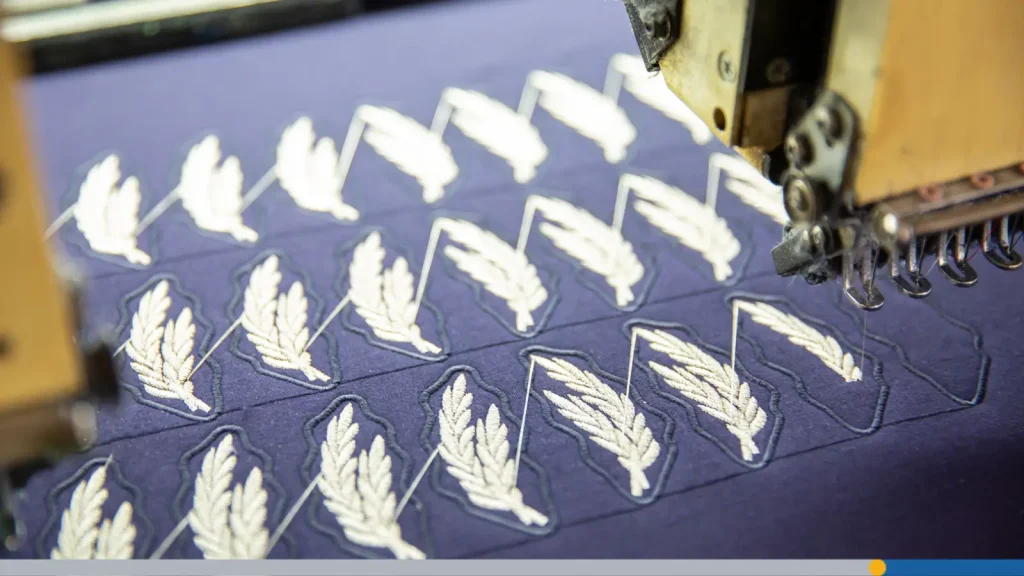
Embroidery is an entirely different world from typical printing. Machines don’t read pixels or vectors; they read stitch paths. A logo stitched onto a hat is physically created using thread, and each stitch direction and density determines the final appearance.
Before embroidery can happen, a technician must take your vector file (EPS or AI) and convert it into a stitch file such as DST, PES, or JEF. This process is called digitizing, and it’s part art, part technical skill.
Not every design translates cleanly into embroidery. Fine details, thin lines, and small text may disappear entirely. Most embroiderers recommend that text be at least a quarter-inch tall to remain legible. A minimum height of 0.25 inches (approximately 6.35mm) is widely recommended for sans-serif text in embroidery to guarantee clarity and quality.
Gradients, shadows, and intricate shapes must often be simplified. The physical limitations of thread mean that embroidery requires thoughtful, vector-based preparation long before the machine starts stitching.
Logo Files for Merchandise & Promotional Products
Depending on the promotional item (shirts, mugs, pens, tote bags, water bottles, tumblers, USB drives), your supplier may need different file formats.
- Screen printing, for example, requires vector artwork because each color is printed through its own stencil.
- Vinyl cutters also need vector shapes to map cutting paths accurately.
- Laser engraving machines rely on vector files to determine engraving depth and placement.
Even though the production processes differ, nearly all merchandise workflows rely on vector formats, EPS, AI, or properly saved PDFs. They secure the clean edges, accurate shapes, and proper color management.
Logo Files for Social Media Platforms
Your logo appears in dozens of places online, each with its own size requirements: circular profile photos, rectangular cover photos, thumbnail previews, icon overlays, and more. A high-resolution PNG is usually the safest choice for social media because it maintains crispness and supports transparent backgrounds.
However, every platform compresses images differently. To preserve quality, create a high-resolution master PNG, such as 1080×1080 pixels. While platforms display profile pictures at smaller sizes (for example, 320×320 pixels), uploading a larger, high-quality source file confirms that the final image looks sharp and avoids compression artifacts across all devices.
For retina displays, which are standard on modern smartphones, a higher-resolution upload prevents blurriness. While social platforms don’t currently support SVG uploads, PNG is an excellent alternative for sharp, clean digital images.

Logo Files for Website Use
Today’s websites are expected to load instantly and look crisp on every device. SVG is the best format for logos and icons online because it scales perfectly and loads almost instantly. It also maintains clarity on retina displays, and because it behaves like code, it offers flexibility for animation and color changes.
That said, some older systems may not support SVGs, so including a PNG or JPG format fallback is wise. For favicons, websites typically require multiple versions because different devices and browsers use different sizes. SVG favicons are increasingly accepted, though PNG variants are still widely used.
While WebP is becoming more popular for photographs, it’s not a replacement for vector logos because it is still a raster format.
Common Logo File Problems & Solutions
Logo issues are usually easy to fix once you understand the root cause. Here are the most common issues business owners encounter and how to fix them.
“Why is there a white box around my logo?”
This usually happens when your logo was saved as a JPEG, which doesn’t support transparency. JPEG files always have a solid background (usually white) even if the logo looks like it’s “floating” when you view it on your computer.
The fix is simple: use a PNG file with a transparent background. PNGs are designed for digital use; they preserve transparency perfectly, and they’re the best choice for placing your logo over photos, colored backgrounds, or website headers without an ugly white box.
“Why does my logo look blurry?”
A blurry logo is almost always a raster vs. vector problem. If you’re using a PNG or JPEG and trying to stretch it larger than it was originally saved, the pixels start to break down. That’s why it looks fuzzy, grainy, or poorly defined.
To keep your logo crisp at any size, you’ll want to use a vector format such as SVG, EPS, or AI. Vectors are built from mathematical paths, not pixels, which means they can scale infinitely without losing quality.
“Why won’t my file upload to my website?”
There are a few different reasons this might happen, but the most common one is simply that your website doesn’t accept the file format you’re trying to upload. For example, EPS and AI files can’t be uploaded to websites, because they’re working design files, not web-ready images.
Another possibility is file size. A massive PNG or high-resolution JPEG can exceed your CMS limits, leading to an upload error. Most platforms, whether WordPress, Shopify, Wix, or Squarespace, prefer straightforward formats like PNG, JPEG, or SVG.
If your site rejects the upload, start by checking what formats it supports, then export your logo in one of those approved options.
“Why are my printed colors different from my screen?”
This is one of the most confusing issues for people who are new to design. What you see on your screen is displayed in RGB, a color system built from red, green, and blue light. Printers, however, use CMYK, which combines cyan, magenta, yellow, and black inks.
Because these color systems behave differently, the same color can shift noticeably between screen and print. To make sure your printed materials look the way you expect, always send your printer a CMYK vector file, such as an EPS, AI, or print-ready PDF. These formats preserve color information accurately and are designed for professional production.
How to Convert Between Logo File Formats (Safely)
Converting a logo file can get tricky, and it’s important to understand what’s actually possible, and what isn’t.
If you have a raster image like a PNG or JPEG and want it to become a true vector file (AI, EPS, SVG), it can’t be converted automatically. Raster-to-vector conversion requires a designer to manually redraw the logo, tracing the shapes so they become scalable vector paths. This is the only way to create an accurate, high-quality vector version.
On the other hand, going from vector to raster is easy. You can simply export your vector logo as a PNG or JPEG at whatever resolution you need.
Note: Those online tools that promise to turn “PNG into SVG” aren’t actually turning it into a real vector file. They’re just wrapping the raster image inside an SVG container. It may look like an SVG, but it won’t scale properly and won’t behave like a true vector.
Conclusion
Logos may look simple, but the files behind them are anything but. Each format serves a specific purpose, and using the wrong one can lead to blurry edges, mismatched colors, transparency issues, or frustrated vendors asking you for something else.
Once you understand the difference between vector and raster formats, and how PNG, SVG, EPS, JPEG, AI, and PDF each fit into your branding toolkit, you gain control over how your brand appears everywhere it lives.
Need help designing your logo? FreeLogoServices‘ AI-Powered logo design platform makes it easy to create jaw-dropping logos in just minutes. Once you’re finished with your design, you can download your logo in a wide range of file formats for use online, in print, on merchandise, and more!
FREQUENTLY ASKED QUESTIONS
What’s the best all-purpose logo format?
There’s no single universal format, but SVG is ideal for websites, while EPS files are the best option for print. A high-resolution PNG is great for everyday digital use.
Can I use just one logo file for everything?
Not if you want consistent quality. Raster files blur when scaled, and vector files don’t belong on websites. Using multiple formats ensures your logo looks professional everywhere.
Should I keep files I can’t open?
Absolutely. Your AI, EPS, and PDF files are your master files, even if you never personally use them.
What’s the difference between .jpg and .jpeg?
Nothing except the name. Both refer to the Joint Photographic Experts Group format.
What is a PDF logo file used for?
PDF files can hold vector graphics, making them versatile for both print and sharing purposes.
What is the best practice for storing logo files?
Keep your master vector files safe. Export multiple formats for web, print, and sharing so your logo is always ready for any printing and editing purposes.