The recommended Instagram logo size for a profile picture is a square image at least 320 × 320 pixels. Instagram shows it as a circle, so center your logo and leave space around it. A symbol that fits neatly inside the square may still lose its corners in the profile crop.
If you add your logo to a post, Story, or Reel, you’ll work on a different canvas. It isn’t mandatory that your mark needs to fill that canvas. It needs to stay recognizable after Instagram displays the post in a feed, crops its profile preview, or places controls over a full-screen video.
This guide covers the size of your business’s logo on Instagram, not Instagram’s own logo. Use the table for a quick answer, then check the placement advice before you export.
Instagram Logo Size & Image Dimensions at a Glance
These are working dimensions for artwork you create for Instagram, not a promise that every viewer will see the entire file at that size. Instagram can crop a preview when you upload an image or place account details and controls over your content.
| Placement | Working size | Aspect ratio | Check before publishing |
| Profile picture | At least 320 × 320 px | 1:1 | Does the logo fit inside the circle? |
| Square feed post | 1,080 × 1,080 px | 1:1 | Does the grid preview keep important artwork visible? |
| Portrait feed post | 1,080 × 1,350 px | 4:5 | Is there room around the logo and text? |
| Taller portrait feed photo | 1,080 × 1,440 px | 3:4 | Does your publishing route support it, and how does it look in the grid? |
| Landscape feed post | 1,080 × 566 px | Approximately 1.91:1 | Is a small logo still readable? |
| Story | 1,080 × 1,920 px | 9:16 | Do interface elements cover the logo? |
| Highlight cover | 1,080 × 1,920 px working canvas | 9:16 | Is the artwork centered in the circular cover preview? |
| Reel and Reel cover | 1,080 × 1,920 px | 9:16 | Do the video and cover work in their different views? |
For Highlight covers, the Story-sized file is a convenient design canvas, not the size of the circle people see on your profile. Adobe Express also uses Story-sized templates for Highlight covers.
A pixel is one single square dot in a digital image. An aspect ratio describes the image’s shape: 1:1 is square, while 9:16 is tall and narrow. Dimensions help you set the canvas, but they can’t make a poor source file sharp. Start with the cleanest version of your logo you have, and then apply a custom image ratio to make your picture fit each use case.
Instagram Profile Picture Size
Your profile picture is your account’s main visual identifier. People also see it at a size much smaller than the file you upload, so a logo must work as a thumbnail as well as on your design canvas.
Recommended Profile Picture Size
Start with a square file of at least 320 × 320 px. If your original artwork is larger and sharper, you can export a larger square without changing its 1:1 shape, for example, 640 x 640 pixels. Don’t stretch a small logo to meet the dimensions; that can leave its edges looking soft.
A detailed horizontal wordmark may be easy to read on your website but cramped in a profile circle. If you have a simpler symbol, monogram, or stacked version of your mark, try it at thumbnail size. Choose the version someone can recognize without zooming in.
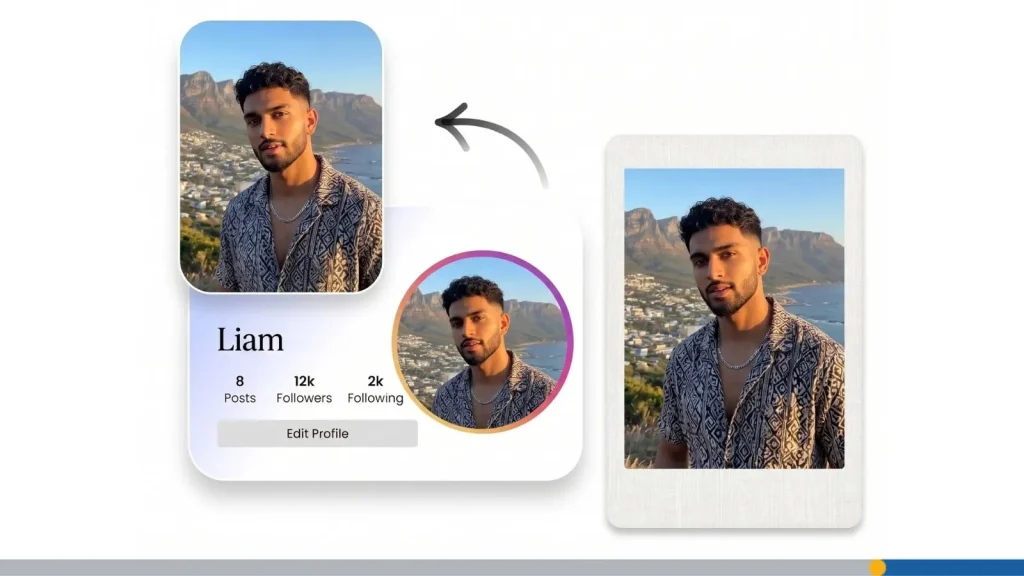
Design for Instagram’s Circular Crop
Imagine a circle touching the middle of each side of your square file. Its four corners sit outside the visible profile picture. Keep letters, symbols, and borders away from those corners.
Leave some space between the mark and the circle’s edge, then preview it small. If a thin line disappears or two letters run together, make the design simpler rather than making the logo fill more of the square. Check contrast, too: A pale symbol may need a darker or solid-color background to remain visible.
Choose a File Format for Your Logo
A PNG can be useful when you need a logo with a transparent background for use in your own designs. For the profile picture, decide what background you want behind the mark and check the finished upload. Don’t rely on the source file’s transparency to produce the appearance you expect in every placement.
Keep the original logo file separate from the square image you upload. That way, you can make a new profile version later without repeatedly resizing an already exported thumbnail.
Instagram Feed Post Sizes
An Instagram post size describes the whole image, not the size your logo should occupy within it. Choose the format that suits the photo or message, then add a logo that supports the design rather than covering it.
Square, Portrait & Landscape Post Sizes
A square post uses 1,080 × 1,080 px. It gives you a balanced canvas for a centered product image or announcement. A 1,080 × 1,350 px portrait post offers more vertical room if you need both a photograph and a short headline. For a wide scene, use a landscape canvas of about 1,080 × 566 px.
Keep your logo’s proportions when moving between formats. A wide wordmark won’t become a good corner signature if you squeeze it narrower. Scale it without distortion, use a compact logo variation, or give it a clear patch of background.
For a carousel, review the first slide as carefully as a single post. It introduces the sequence in the feed and on your profile. Check the other slides as well, especially if they have different shapes: Carousel sizing choices can affect how Instagram presents or crops them.
How 3:4 Posts Appear in the Grid
A taller 3:4 feed photo can use a 1,080 × 1,440 px canvas. Instagram’s profile-grid previews also use a 3:4 shape, but that doesn’t mean every full-size post must be 3:4. A square, 4:5, or wide post can look different in the grid than it does when opened.
Place important artwork where it survives both views. If your logo sits at an edge or forms part of a headline, inspect the full post and the grid preview before publishing. If you use a scheduler, check which upload ratios it supports before designing a batch of 3:4 posts.
Where to Place Your Logo on Feed Posts
A small logo can identify the business without competing with the product, photograph, or message. Pick a position that stays consistent across related posts, but adjust it when the background or grid crop makes it hard to see.
For example, a light logo in the lower corner of a dark product photo may read clearly. Put that same logo over a bright tabletop, and it may disappear. Move it to a darker area, choose another approved logo color, or add a restrained background panel. Check the post at phone size rather than judging only from your editor’s enlarged view.
Instagram Stories & Highlight Covers
Stories and Highlight covers can begin on the same vertical canvas, but they have different jobs. A Story needs its message and logo to work around on-screen controls. A Highlight cover needs its central artwork to survive as a small circle on your profile.
Instagram Story Size & Logo Safe Areas
Create a Story at 1,080 × 1,920 px, a 9:16 vertical format. Keep your logo and essential text away from the top and bottom edges, where Instagram places account details and controls. Then preview the finished Story in the app.
A fixed safe-zone measurement can be a useful starting guide for a template, but it isn’t a substitute for checking the actual design. Stickers, text, and the content behind your mark can also change where it reads best. Keep the logo on an editable layer so you can move it without rebuilding the Story.
You don’t have to make the mark large to make the Story feel branded. A modest logo on a clear background leaves more room for the photograph, announcement, or offer people came to see.
Highlight Cover Size & Circular Crop
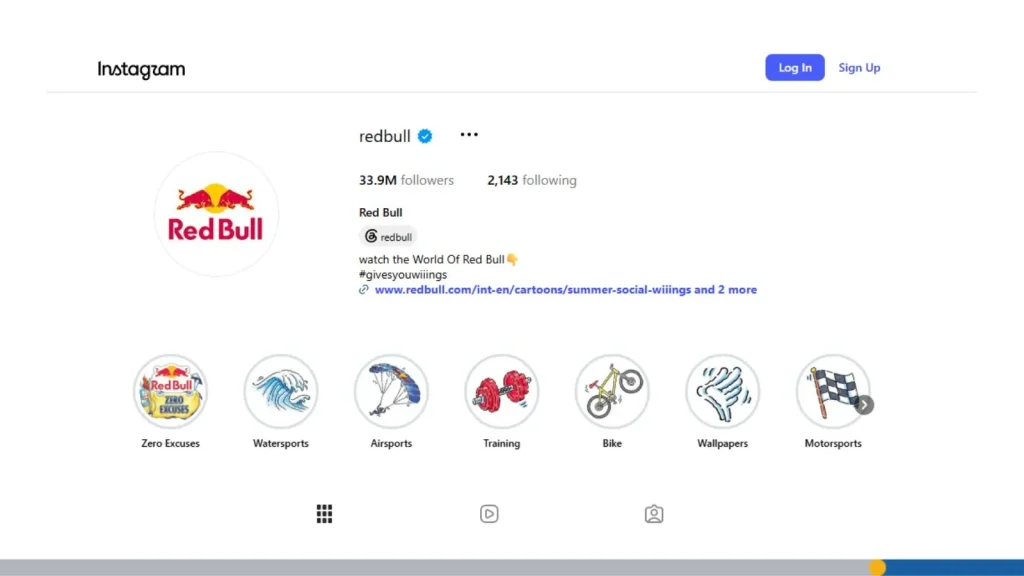
A 1,080 × 1,920 px Story-sized canvas gives you a practical starting point for a Highlight cover. Put the symbol or icon in the center, then inspect the circular cover Instagram shows on your profile. The full-height artwork won’t appear in that small circle.
Use a consistent background or icon treatment if you’re creating several covers. Don’t squeeze a full business name into each one if it becomes unreadable. A simple mark or an icon that identifies the Highlight’s topic can do the job more clearly.
Instagram Reels Size & Logo Overlay
Reels use a full-screen vertical video format, but viewers can also encounter a Reel through its cover and profile preview. Check those views separately instead of assuming a logo that looks good during playback will also work as a thumbnail.
Instagram Reel Dimensions
Create the Reel on a 1,080 × 1,920 px, 9:16 canvas. Use the same working dimensions when designing a custom cover. On the main profile grid, the cover appears in a 3:4 preview; in the profile’s Reels tab, it appears in a taller view.
Choose a cover where the main subject still makes sense in both crops. A long wordmark at the very top or bottom may look fine in the full cover but disappear or feel cramped in a preview. Check the cover in Instagram before posting and adjust its crop where the app allows.
Place Your Logo Around Reel Controls
Captions, account information, and buttons can compete with a logo near the edges of a Reel. Watch the finished video on a phone, with the interface visible. If the mark lands under a control or vanishes against moving footage, shift it or give it a simple backing.
Your logo doesn’t need to remain on-screen for every second. If it would cover a demonstration or product detail, use an opening or closing frame instead. The aim is to connect the video to your business without making it harder to watch.
How to Prepare Your Logo File for Instagram
The right canvas dimensions won’t rescue a blurry original. Save an editable master logo, then create separate files for the placements you actually use. A profile picture, a feed design, and a Reel cover can share the same brand mark without using the same finished file.
Start With a Clean Logo File
Choose a version of the logo suited to the placement. A compact symbol or stacked arrangement can fit a profile picture or Highlight circle. A wider wordmark has more room in a feed design or on a Reel’s closing frame.
If you have an editable vector original, such as an SVG, use it to make image exports at the sizes you need. A PNG is useful as a transparent logo asset to place over other artwork. A JPEG doesn’t offer that same transparent background. Your source file and your finished Instagram upload have different purposes; keep both.
If you only have a small PNG or JPEG, inspect its edges before enlarging it. You may need to return to the original design rather than scale a low-resolution copy until it meets a table entry.
Resize, Export & Check Your Upload
- Choose the placement: Decide whether you’re making a profile picture, feed post, Story, Highlight cover, Reel, or Reel cover.
- Set the canvas: Use the matching working dimensions in the table. Resize the canvas or composition, not the logo, out of proportion.
- Position the mark: Allow for the profile circle, grid preview, Highlight crop, or on-screen controls that apply.
- Export the finished artwork: Use a suitable image or video format for the placement. Keep a separate editable source so you can make changes later.
- Inspect the upload: Check the full view and any smaller preview in Instagram, preferably on a phone.
That last check catches problems a dimension chart can’t: a thin line vanishing at thumbnail size, a letter cut off by a circular crop, or a logo hidden beneath a Reel control.
Instagram Profile Branding Checklist
Before applying a new logo across your account, check the places people will see together:
- Your profile mark remains recognizable inside its circular crop.
- Your bio uses the business name and identity people see in the profile image.
- Your Highlight covers read clearly as small circles.
- Your feed artwork keeps important logos and text visible in the grid.
- Your Story and Reel logos don’t sit beneath on-screen controls.
- Your uploaded files look sharp on a phone, not only in your editor.
Save the reference table if you often look up IG image dimensions, but keep your editable master logo as well. It’s easier to adapt one good source file than to rebuild each design from an old, flattened image.
Need a logo you can use across your profile and posts? The FreeLogoServices logo maker lets you create and customize a design. Its site describes downloads in multiple formats and sizes, including social media formats; check the available package options before choosing files. Start with a mark you like, then test how it reads in Instagram’s smallest placements.