
Connecting Your Domain to SquareSpace’s Hosting Server
Connecting your domain name to a hosting server allows you to create and publish a website for the public to see. Hosting your website is essential for allowing public access to internet users and to be found on the world wide web. Connecting your domain allows you to keep your domain name subscription with a trusted domain provider while using the hosting services and website tools of another company, like Squarespace.
Connecting your domain name to a hosting server allows you to create and publish a website for the public to see. Hosting your website is essential for allowing public access to internet users and to be found on the world wide web. Connecting your domain allows you to keep your domain name subscription with a trusted domain provider while using the hosting services and website tools of another company, like Squarespace.
To connect your domain to SquareSpace, please follow this step-by-step guide:
1. Sign into your account on our site.
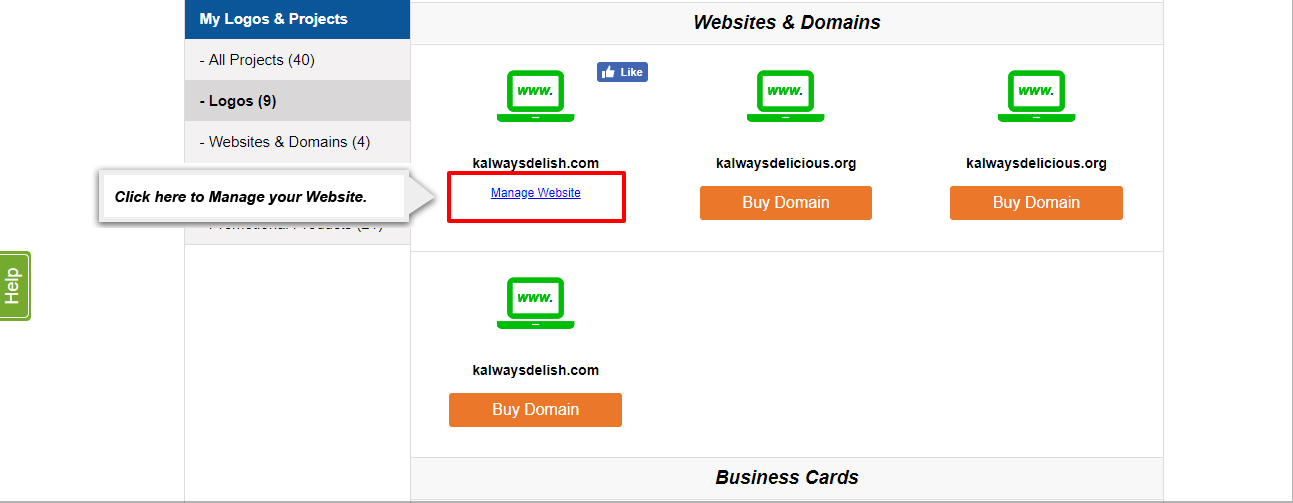
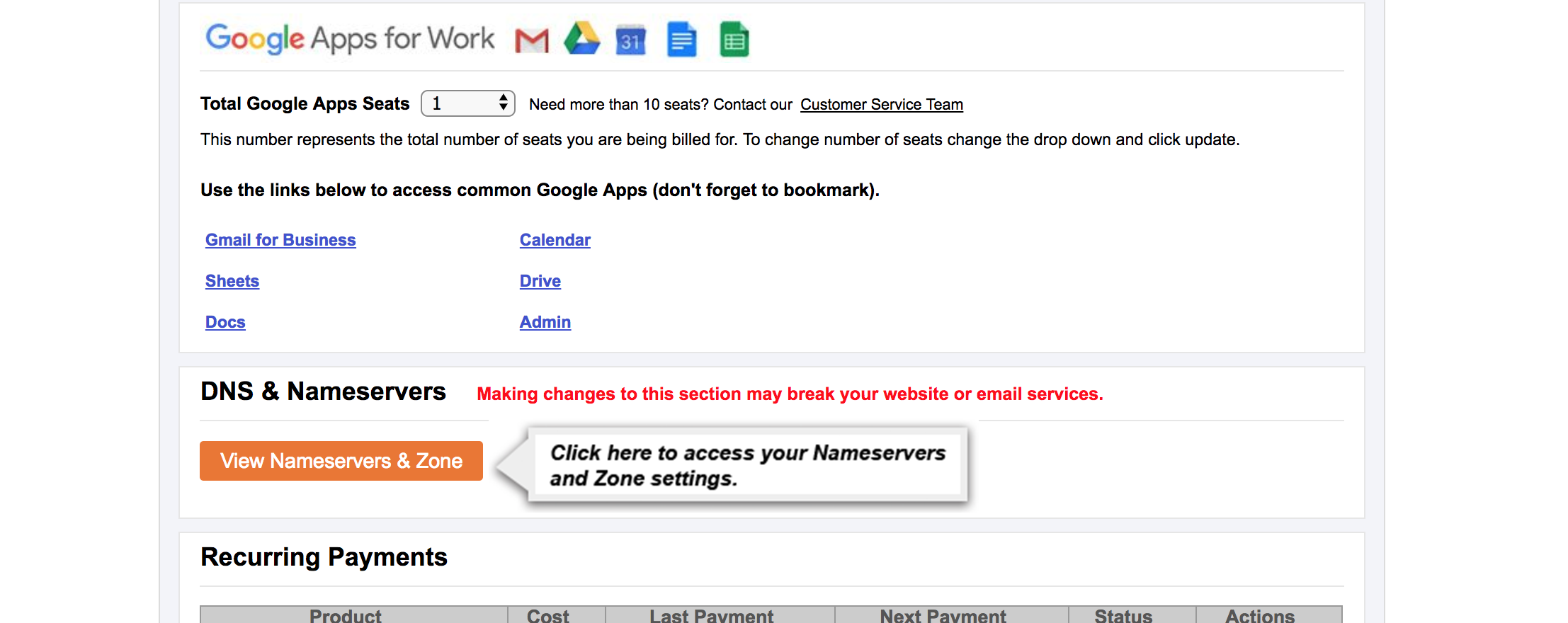
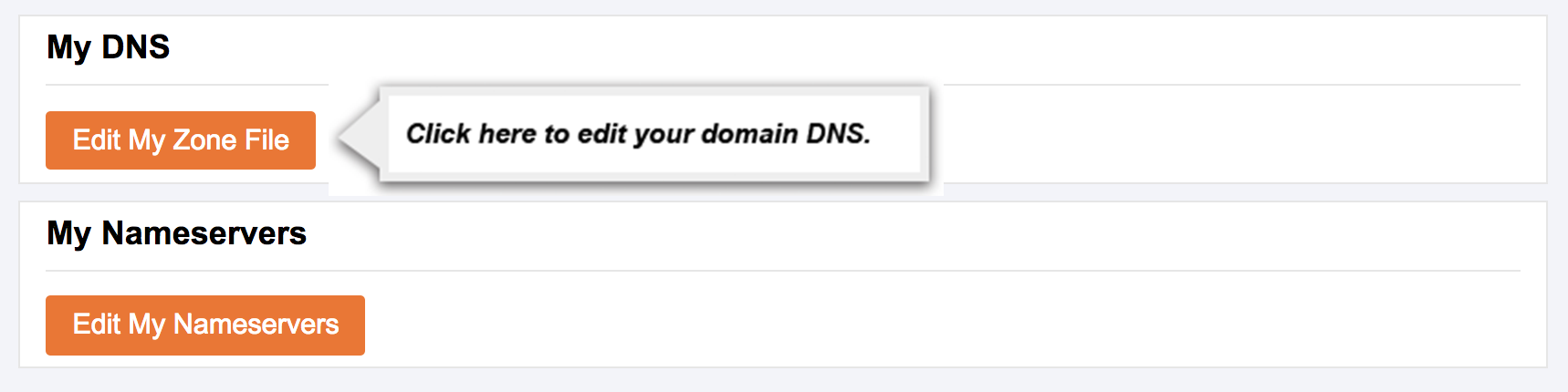
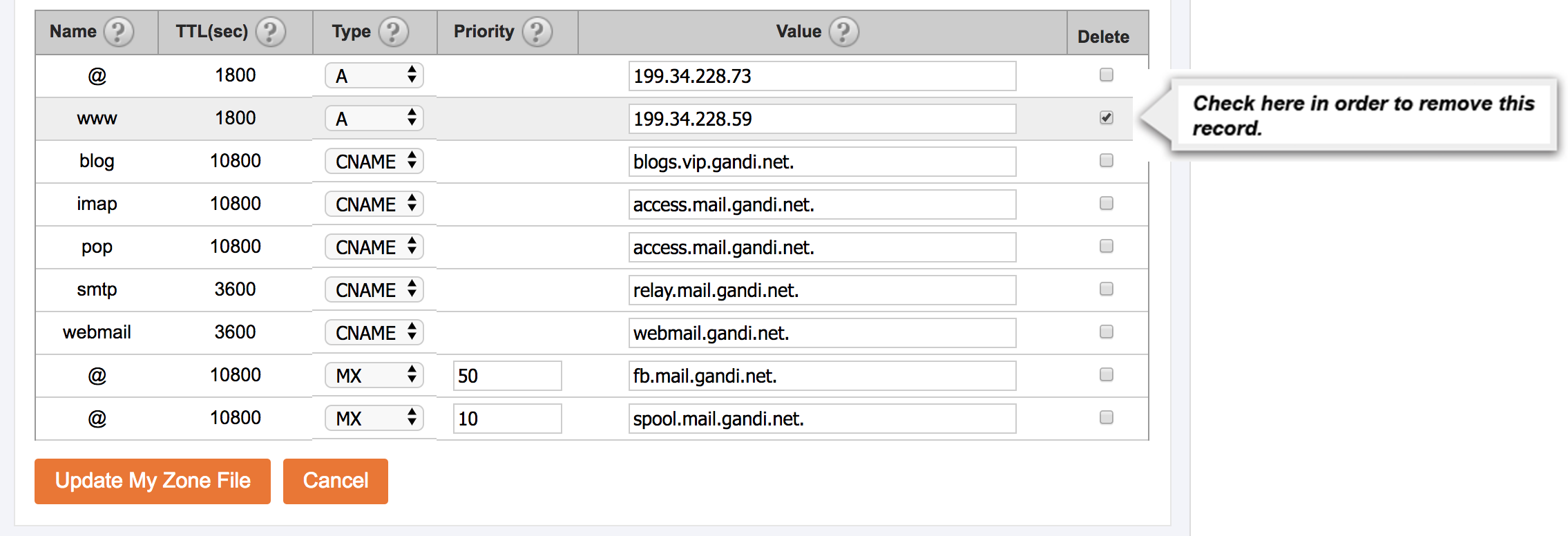
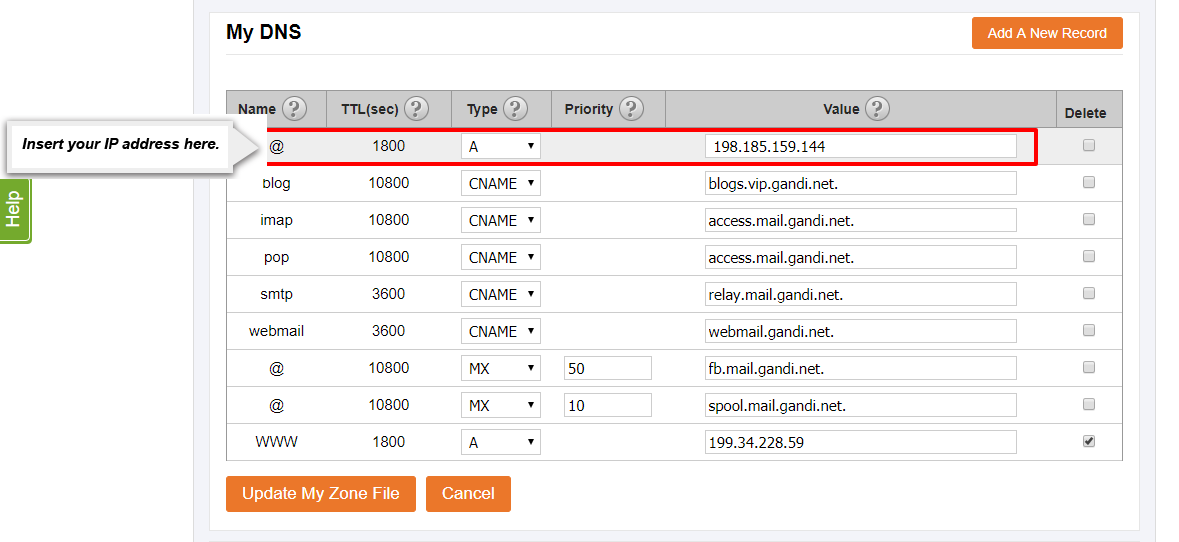
6. Change the value of the @ A Record to 198.185.159.144
 Opens a new window
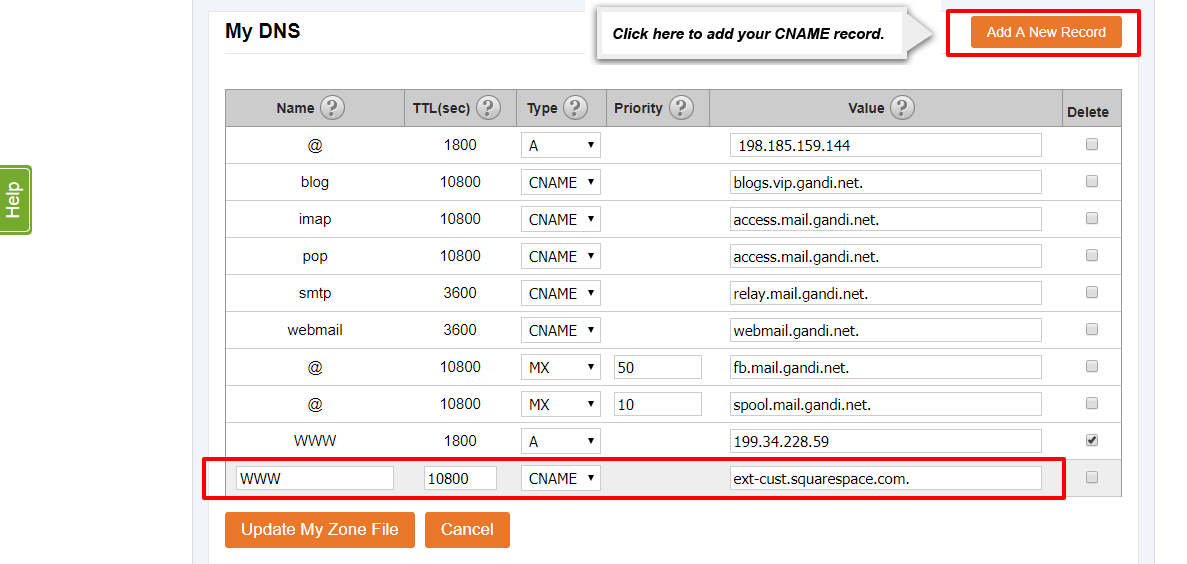
Opens a new window7. Click “Add A New Record”. Write the Name of this new record as www, set the TTL to 10800, and set the Type to CNAME. Then write the value as ext-cust.squarespace.com.
 Opens a new window
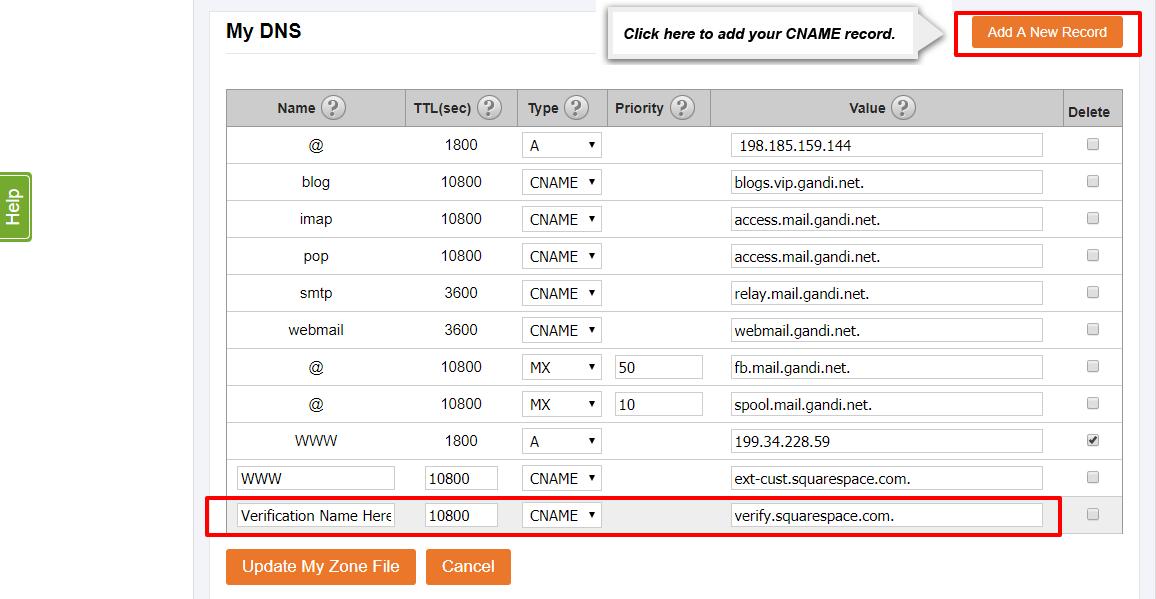
8. Click “Add A New Record”. Set the TTL to 10800, and set the Type to CNAME and write the value as verify.squarespace.com. Copy the SquareSpace Verification Name found in the first line of your SquareSpace DNS Settings, and paste this string of letters and numbers into this record’s Name spot. (If you need assistance finding your SquareSpace DNS Records please follow Steps 1-3 of this guide: Click Here For Guide)
 Opens a new window
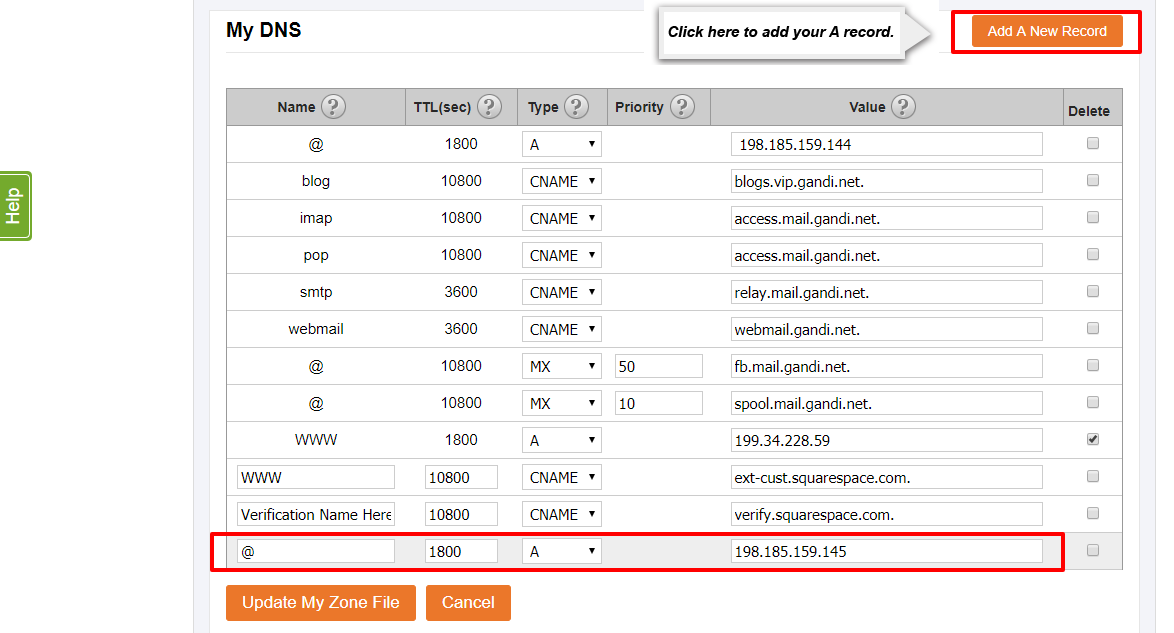
9. Click “Add A New Record”. Write the Name of this new record as @, set the TTL to 1800, set the Type to A and write the value as 198.185.159.145
 Opens a new window
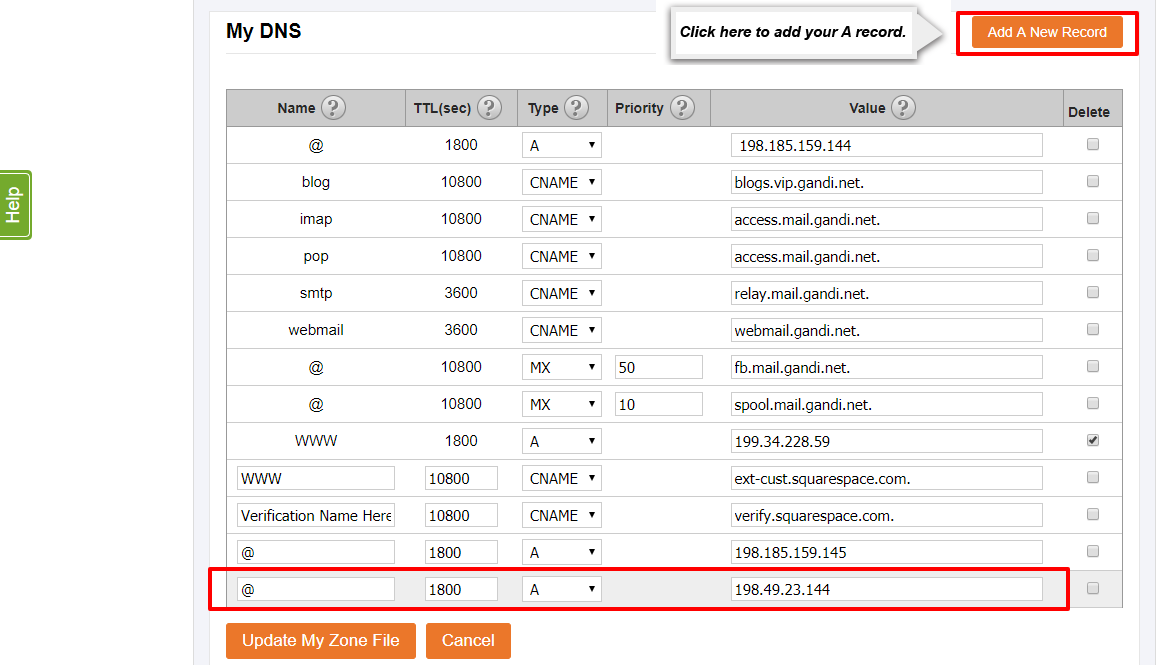
Opens a new window10. Click “Add A New Record”. Write the Name of this new record as @, set the TTL to 1800, set set the Type to A and write the value as 198.49.23.144
 Opens a new window
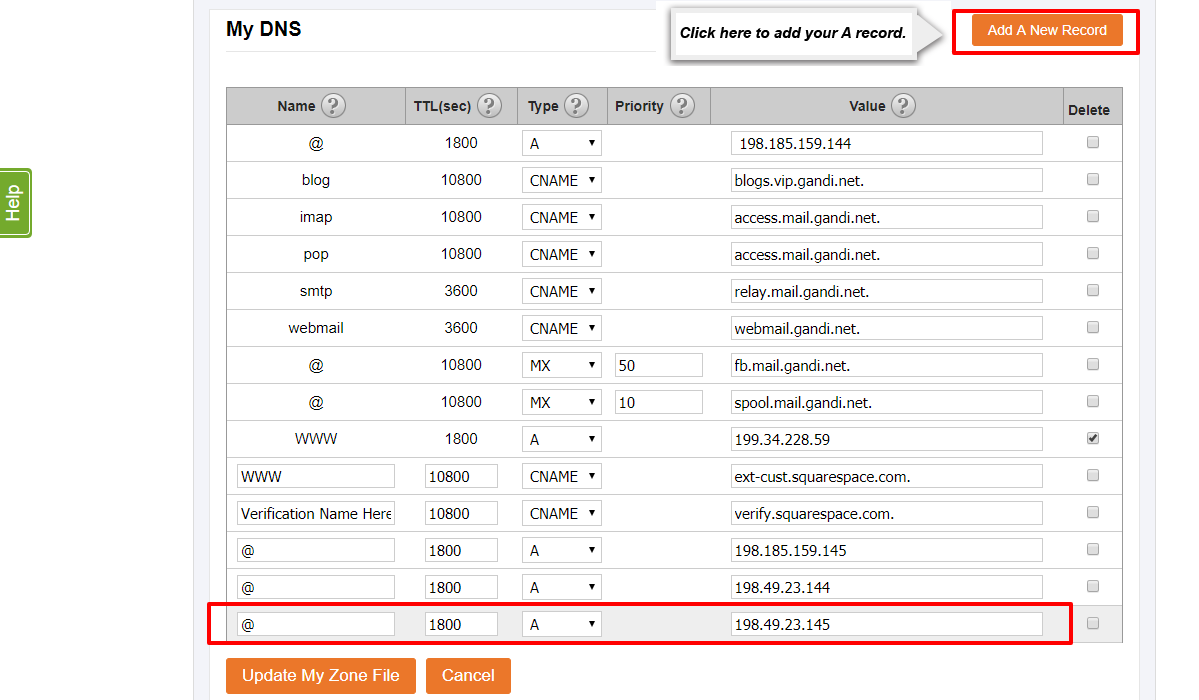
Opens a new window11. Click “Add A New Record”. Write the Name of this new record as @, set the TTL to 1800, set the Type to A and write the value as 198.49.23.145
 Opens a new window
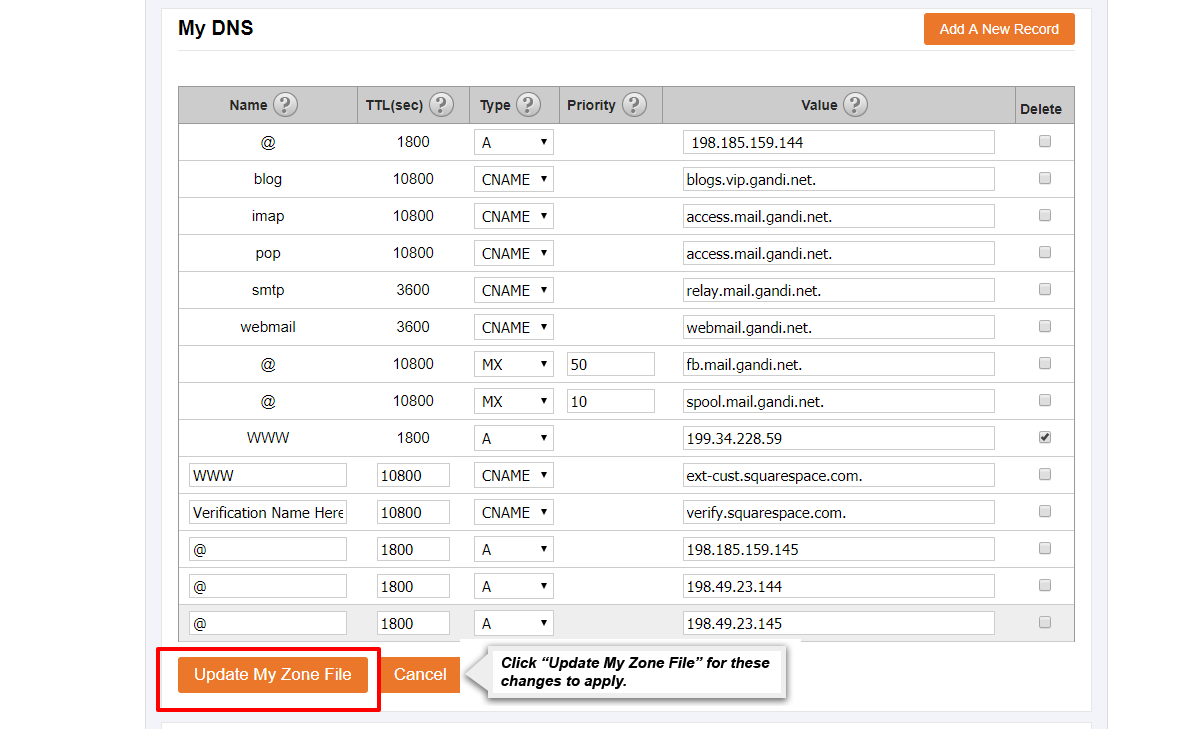
Opens a new window12. Click “Update My Zone File”.
 Opens a new window
If you have any trouble connecting your domain to SquareSpace please contact customer service by using the "Submit A Request" in the top right corner.
Opens a new windowIf you have any trouble connecting your domain to SquareSpace please contact customer service by using the "Submit A Request" in the top right corner.